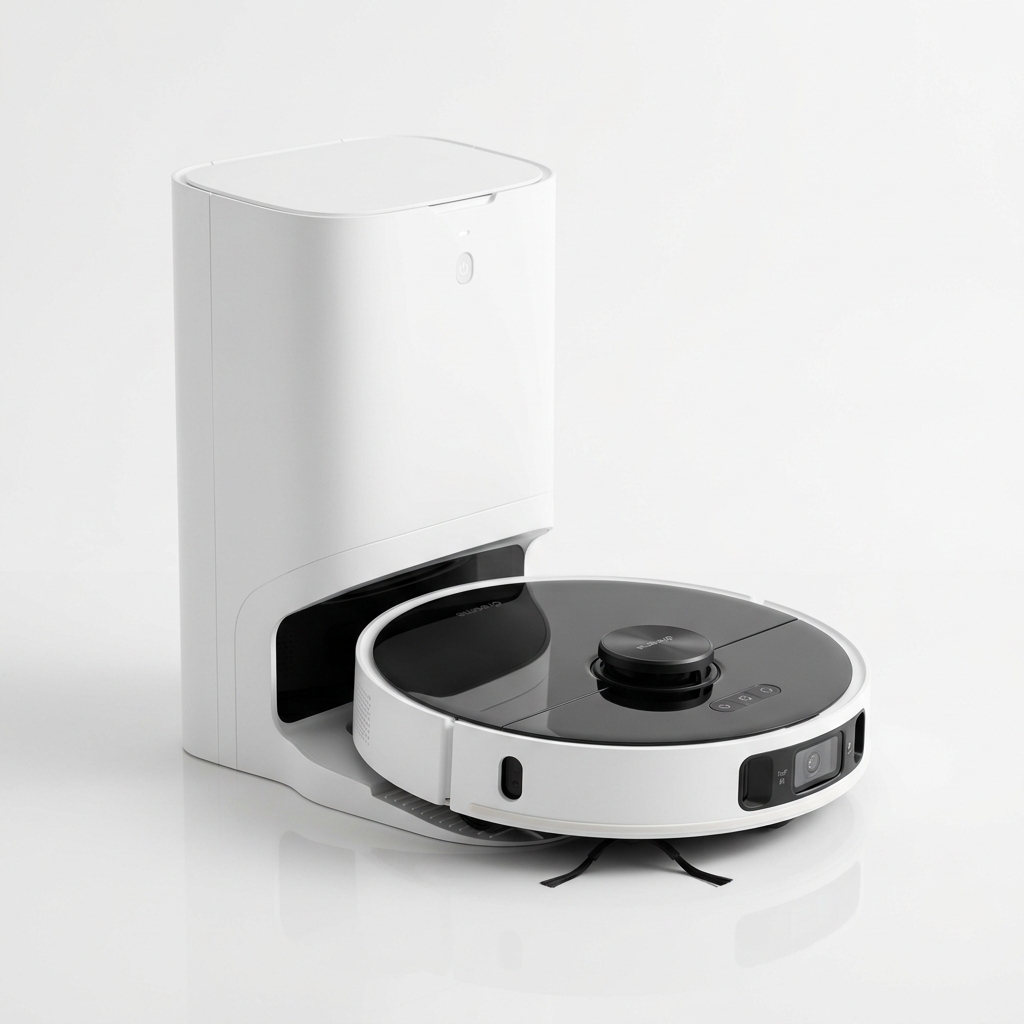
Dreame
★ 4.6
Dreame D10 Plus Gen 2
Best Value Robot Vacuum with 6000Pa Suction
₹27,999
90-Day Self-Emptying (4L Bag)
6000Pa Vormax Suction
LiDAR Navigation
Step-by-step robot vacuum setup guide for Indian homes. Unboxing, app installation, Wi-Fi, first cleaning run & troubleshooting tips.
Bringing home a robot vacuum is exciting, but the setup process can be confusing if you are doing it for the first time. Between connecting to Wi-Fi, installing the companion app, and mapping your home for the first time, there are several steps to get right. This robot vacuum setup guide walks you through each stage in detail — from unboxing to your first scheduled clean — with specific considerations for Indian homes. Different brands like Xiaomi, Dreame, iRobot, and Eureka Forbes have slightly different companion apps, but the overall workflow is similar. Taking the time to set up correctly ensures your vacuum navigates efficiently, charges properly, and delivers consistent results from day one. A rushed setup often leads to connectivity issues, poor mapping, and unnecessary frustration later.
Before plugging anything in, verify that all components are present. The typical package includes:
Check the power adapter rating. Indian standard voltage is 230V at 50Hz. Most adapters are universal (100–240V), but verify this before plugging in. Contact the seller immediately if any component is missing.
The dock’s placement directly affects whether your vacuum can return to charge reliably.
Floor surface. Place the dock on a hard, level surface. Carpets or uneven tiles can cause the dock to rock, preventing proper contact.
Clearance. Leave at least 1 metre of open space in front of the dock and 0.5 metres on each side. The vacuum needs room to approach and align itself.
Proximity to a power outlet. Use the wall power outlet directly. Avoid extension cords if possible. If you must use one, ensure it is a high-quality surge-protected strip rated for 10A or more.
Avoid direct sunlight. As noted in the Robot Vacuum Maintenance Guide, sunlight interferes with the infrared sensors used for docking. Choose a shaded spot.
Wi-Fi signal strength. Place the dock within reasonable range of your Wi-Fi router. Thick concrete walls common in Indian apartments can weaken signals. A dock that is too far from the router may cause the vacuum to lose connection mid-cycle.
Most robot vacuums ship with a partial charge. Place the vacuum on the dock and press gently until the charging contacts align. A beep or indicator light confirms charging has started.
Each brand uses its own app. Common examples include:
| Brand | App Name | Availability on Indian App Stores |
|---|---|---|
| Xiaomi / Dreame | Mi Home / Xiaomi Home | Yes |
| Roborock | Roborock | Yes |
| iRobot | iRobot HOME | Yes |
| Eureka Forbes | Commect Plus | Yes |
| Samsung | SmartThings | Yes |
| Realme | Realme Link | Yes |
Download the app from the Google Play Store or Apple App Store. Create an account using your email address or phone number. Indian phone numbers (10-digit, starting with +91) are accepted without issues.
Connecting the vacuum to the app varies by brand, but the general process is:
Wi-Fi connectivity issues are the most common problem during setup.
2.4 GHz vs. 5 GHz bands. Robot vacuums almost exclusively support the 2.4 GHz band. If your router uses the same SSID for both bands (dual-band with band steering), the vacuum may fail to connect. Temporarily disable the 5 GHz band from your router settings, or create a separate 2.4 GHz-only guest network.
Router compatibility. Most Indian broadband routers (JioFiber, Airtel, ACT Fibernet, BSNL) work without issues. If you use a mesh Wi-Fi system, ensure the 2.4 GHz and 5 GHz networks have separate SSIDs.
Firewall and security settings. Some corporate or advanced routers block device-to-cloud communication. If your vacuum connects to the app but won’t complete the activation, check that your router’s firewall allows outbound connections on ports 80, 443, and (for some brands) 8883.
Wi-Fi password. Avoid special characters like @, #, $ in your Wi-Fi password if you encounter repeated connection failures. Some vacuum firmware has trouble parsing these characters.
Once the battery is fully charged and the app is connected, it’s time for the first clean.
Modern robot vacuums with LiDAR or laser navigation create a map of your home during the first cleaning run. Once the map is saved in the app, you can:
Tips for good mapping:
For vSLAM (visual SLAM) models — such as older iRobot Roombas — good lighting is important during mapping. Keep lights on in rooms you want mapped.
Once mapping is complete, set up a schedule that fits your routine.
Vacuum not connecting to Wi-Fi. Restart the vacuum and your router. Ensure the vacuum is within 5 metres of the router during setup. Confirm that you are using a 2.4 GHz network.
App cannot find the vacuum. Make sure Bluetooth is enabled on your phone during initial pairing (many apps use Bluetooth to discover the device before handing off to Wi-Fi). Restart the app and try again.
Vacuum won’t charge after docking. Check that the charging contacts on both the vacuum and the dock are clean. Ensure the dock is plugged into a working outlet. Listen for a confirmation beep when the vacuum seats itself on the dock.
Map is incomplete or missing rooms. Run a full cleaning cycle with all interior doors open. Some vacuums need two or three runs to generate a complete map. If multiple runs don’t help, check if your model allows “quick mapping” or “fast mapping” in the app — run that feature separately.
Vacuum keeps bumping into furniture. Lower the suction power during navigation. Add soft bumpers to furniture legs if necessary. Some vacuums allow you to set furniture clearance sensitivity in the app.
Do I need Wi-Fi to use a robot vacuum? Basic cleaning functions (start, stop, dock) work even without Wi-Fi via the physical buttons. However, scheduling, mapping, and remote control require the app and internet.
Can I use the Mi Home app with non-Xiaomi vacuums? Some Dreame and Roborock models are compatible with the Mi Home app. Check your model’s documentation before assuming compatibility.
What should I do if my robot vacuum doesn’t come with an Indian plug? Most models sold in India come with a type D or type M 3-pin plug. If you purchased internationally, you may need a travel adapter. Verify the input voltage on the adapter before using.
How long does the initial charge take? Most robot vacuums need 4–6 hours for a full charge. Some models with larger batteries may take up to 8 hours.
Can I move the dock after mapping? Yes, but if you move the dock more than a few metres, the vacuum may struggle to locate it. Relocate the dock, delete the existing map in the app, and run a mapping cycle again.
Why does my vacuum keep disconnecting from Wi-Fi? Weak signal strength is the most common cause. Move the dock closer to the router or consider a Wi-Fi range extender. Also check that your router’s 2.4 GHz band is not overloaded with many connected devices.
Is it safe to schedule cleaning when I’m not home? Yes, provided you have removed small obstacles and loose cables from the floor. Close doors to rooms with pets or delicate items. Most users run their vacuums while away from home without issues.
Does setup differ for LiDAR vs camera-based vacuums? The basic setup process is similar. Camera-based models (vSLAM) require adequate lighting during mapping. LiDAR models work equally well in the dark.
Can I set up multiple robot vacuums in one app? Yes, most apps support multiple devices. Each vacuum appears separately, and you can rename them for easy identification.
My vacuum is stuck on “connecting” in the app. What now? Force-close the app, restart your phone, and try again. If the issue persists, reset the vacuum’s Wi-Fi module (refer to your manual for the reset procedure) and start the pairing process from scratch.
Looking for a robot vacuum? Check Price on Amazon for popular models like the Xiaomi Mi Robot Vacuum Mop Pro.
Internal Linking Suggestions:
Affiliate Disclosure: As an Amazon Associate I earn from qualifying purchases. If you choose to purchase a product through these links, I may earn a small commission at no additional cost to you.
Affiliate Disclosure: As an Amazon Associate I earn from qualifying purchases. If you click on a link and make a purchase, I may earn a small commission at no extra cost to you.
Check the latest prices and reviews on Amazon India.
Best Value Robot Vacuum with 6000Pa Suction
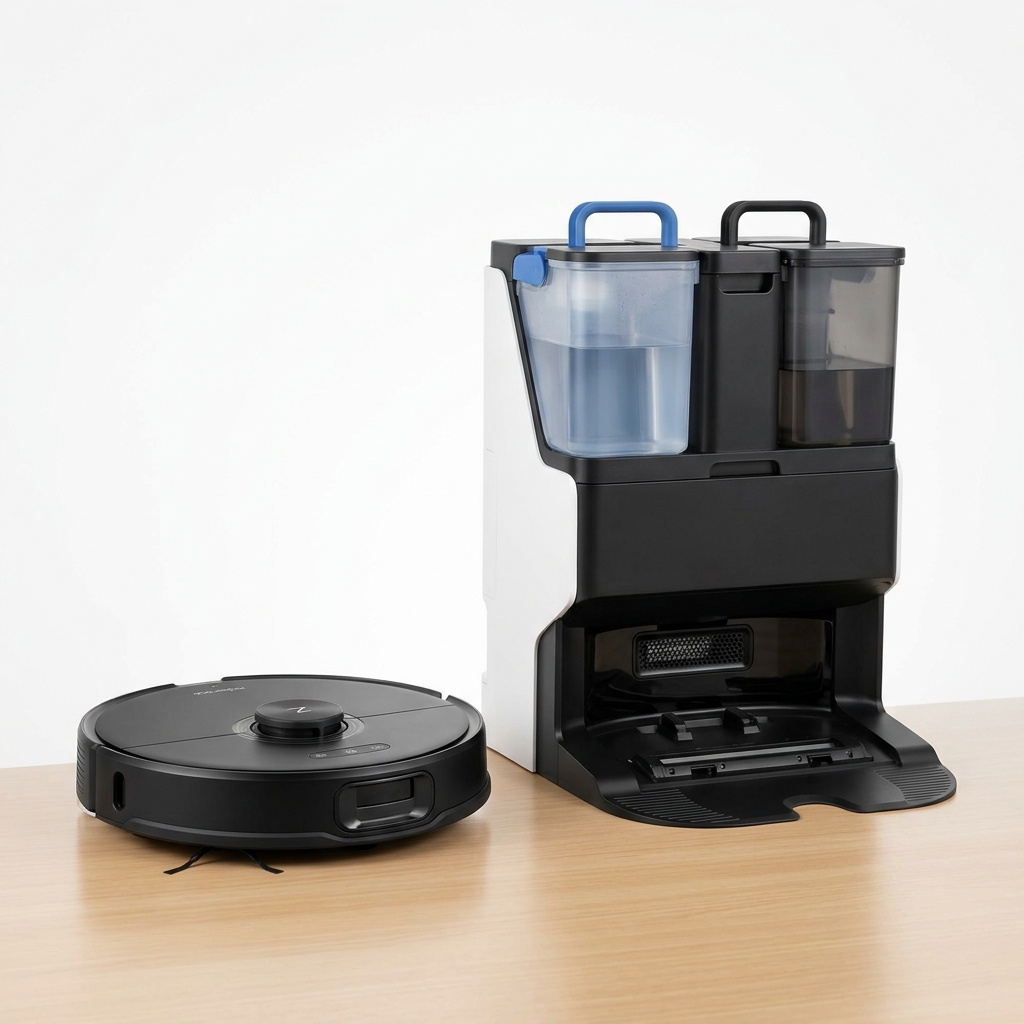
Premium Robot Vacuum with Auto Mop Washing Dock
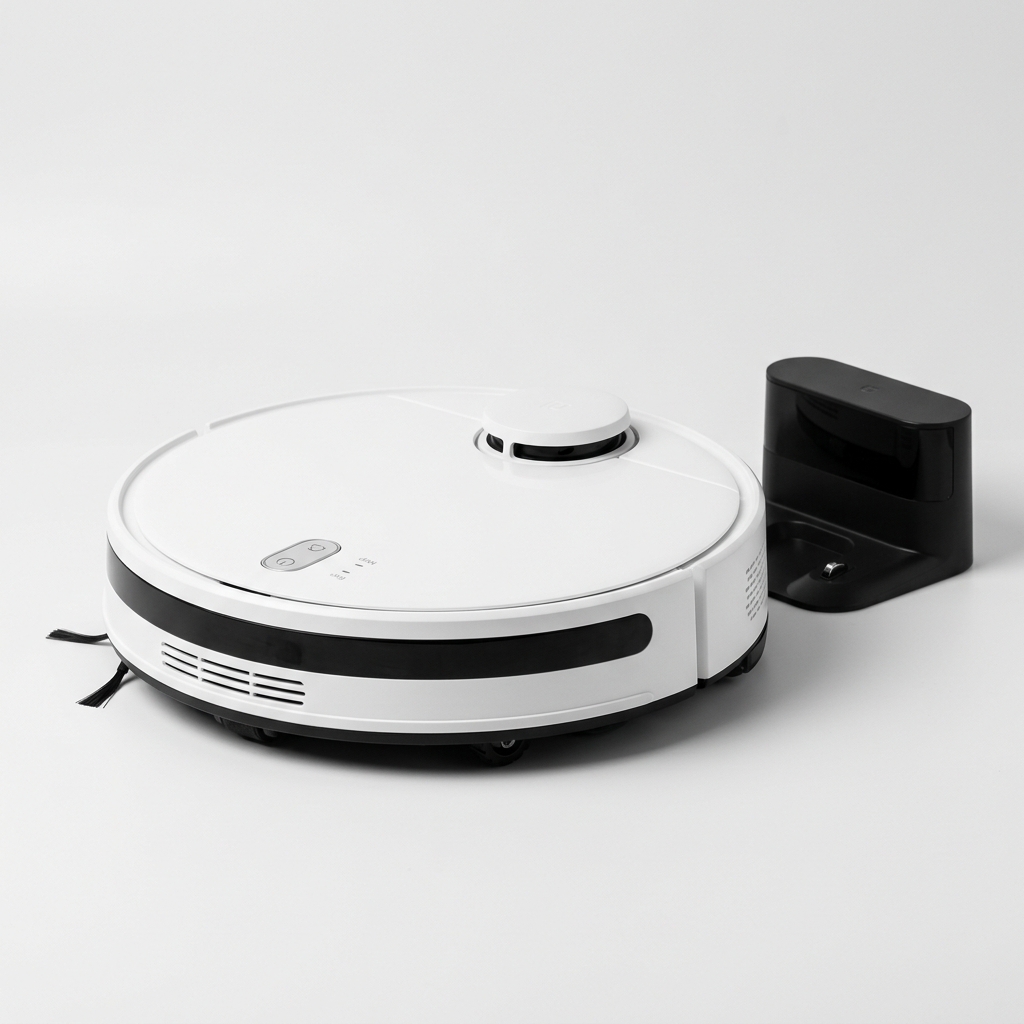
Affordable Robot Vacuum with 5200mAh Battery & LDS Navigation
Our comprehensive guide to the best robot vacuum cleaners available in India in 2026. Expert picks for every budget.
Buying GuidePractical framework for choosing a robot vacuum in India: floor types, home size, budget, must-have features, navigation, and maintenance.
GuideLearn how LiDAR navigation works in robot vacuums, its advantages over camera and gyroscope systems, and why it matters for Indian homes.
Compare top-rated models side by side and pick the best one for your home and budget.